


Understanding the Application File as an Evaluator
The Application File is where you access everything related to a specific application — the applicant's submitted form, the evaluation you need to complete, activity history, comments, and more. Understanding how the file is structured helps you evaluate efficiently and stay on top of your assigned applications.
What you can see and do inside the Application File depends on the permissions configured for your user role by your program administrator. If you cannot access a specific application or tab, contact your admin.
Where to Find Application Files
Click Applications in the top navigation menu and select Overview. From here, click on an applicant's name to open their Application File.
To quickly find applications that require your evaluation, use the Evaluation required from me filter at the top of the Overview page.
You may only see the applications assigned to you, or all applications in the funnel — this depends on your admin's configuration. Additionally, you may only have access to an application while it is in the round that requires your evaluation. Once it moves to the next round, access to the evaluation may be removed depending on your permissions.
What You Will Find in the Application File
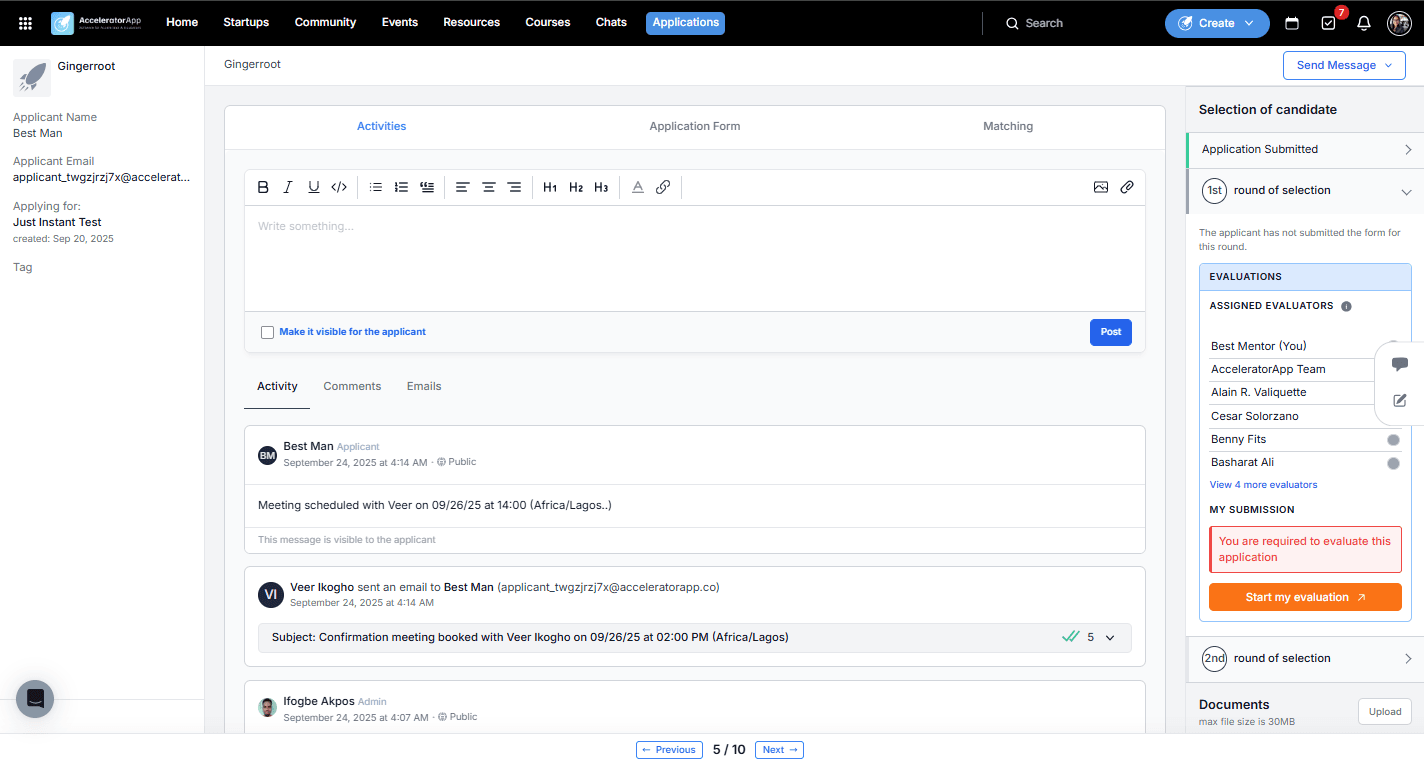
Application Form Tab
The applicant's submitted form responses. Review this before completing your evaluation to understand the applicant's background, project, and answers.
Activity Tab
A chronological log of all activity related to this application — including coaching sessions, notes, and system events. You can also post notes or comments from here.
Comments Tab
A space for internal comments between reviewers and program staff. Use this to share observations or flag something for the team's attention without it being visible to the applicant.
Emails Tab
A log of all emails sent to or from this applicant through the platform. Useful for tracking what communications have already gone out.
Evaluation
If the current round includes an evaluation step, you will see a Start Evaluation button inside the Application File. Click it to open the evaluation form and fill in your scores and comments.
Whether your evaluation responses are saved automatically as you fill them in, or whether you need to click Save manually, depends on how your admin has configured the funnel. Confirm this with your admin before your first evaluation to avoid losing work.
Once you are ready, submit the evaluation. Your pending task for that evaluation will be marked as complete automatically.
Best Practices
- Use the Evaluation required from me filter in the Overview. This is the fastest way to see which applications still need your input without browsing the full list.
- Review the Application Form before starting your evaluation. Reading the applicant's responses first gives you the context you need to score accurately and leave meaningful comments.
- Leave comments for your team. If you have observations that go beyond the evaluation form — such as concerns or standout points — use the Comments tab to flag them for the rest of the review team.
- Submit promptly after your interview or review. Completing the evaluation while the session is still fresh leads to more accurate and useful scores.